Lingandia — an app to learn languages from video with subtitles and vocabulary
Watch videos with two subtitle tracks, translate words on click, and keep a personal vocabulary with review and progress — in the browser, on desktop, or on Android.


What is Lingandia
Lingandia combines watching video and working with language: you watch content with subtitles, instantly see translation and word references, and save words to your personal list. Reviews use that list: word–translation matching sessions, reminders for review timing on the word screen, and a stage summary on the dashboard.
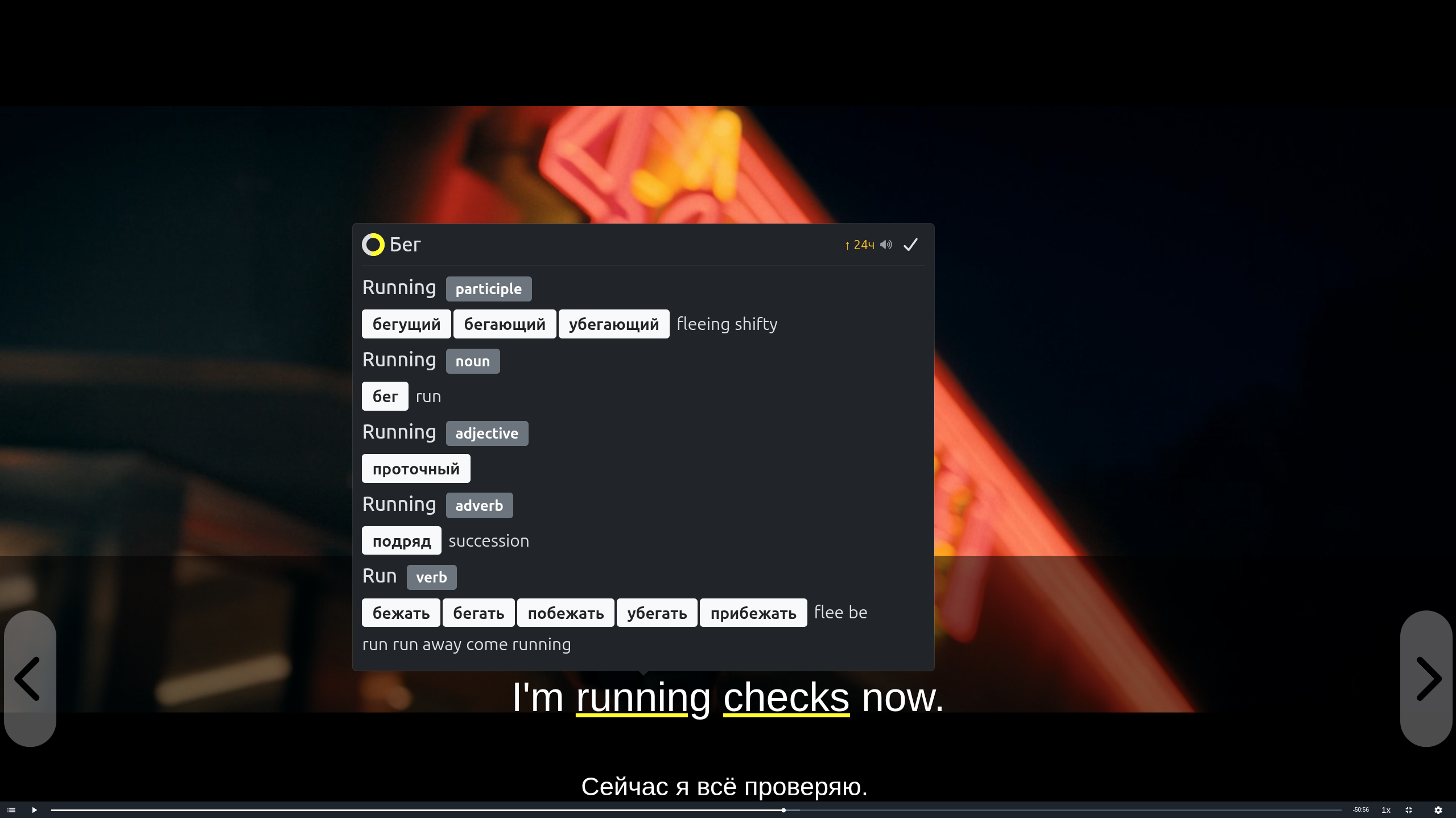
Capabilities
Subtitles and translation
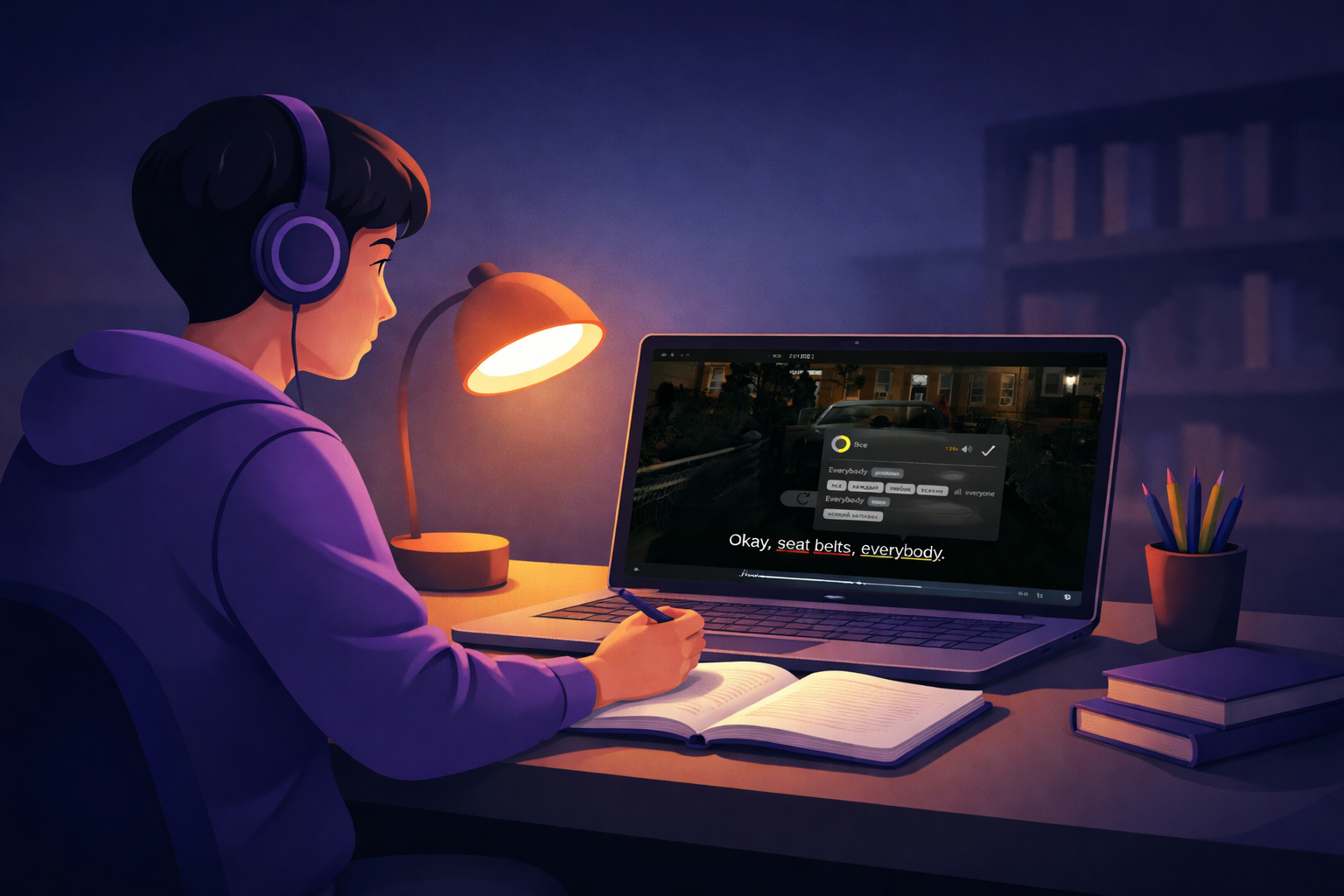
- Two subtitle tracks Show one track or both at once.
- Word in subtitles Tap or click opens translation and a dictionary entry.
- Line navigation Jump to the previous or next subtitle line.
- Repeat current line Replays the current line based on timing from the selected track.
- Back to previous Go to the previous line and play from its start.
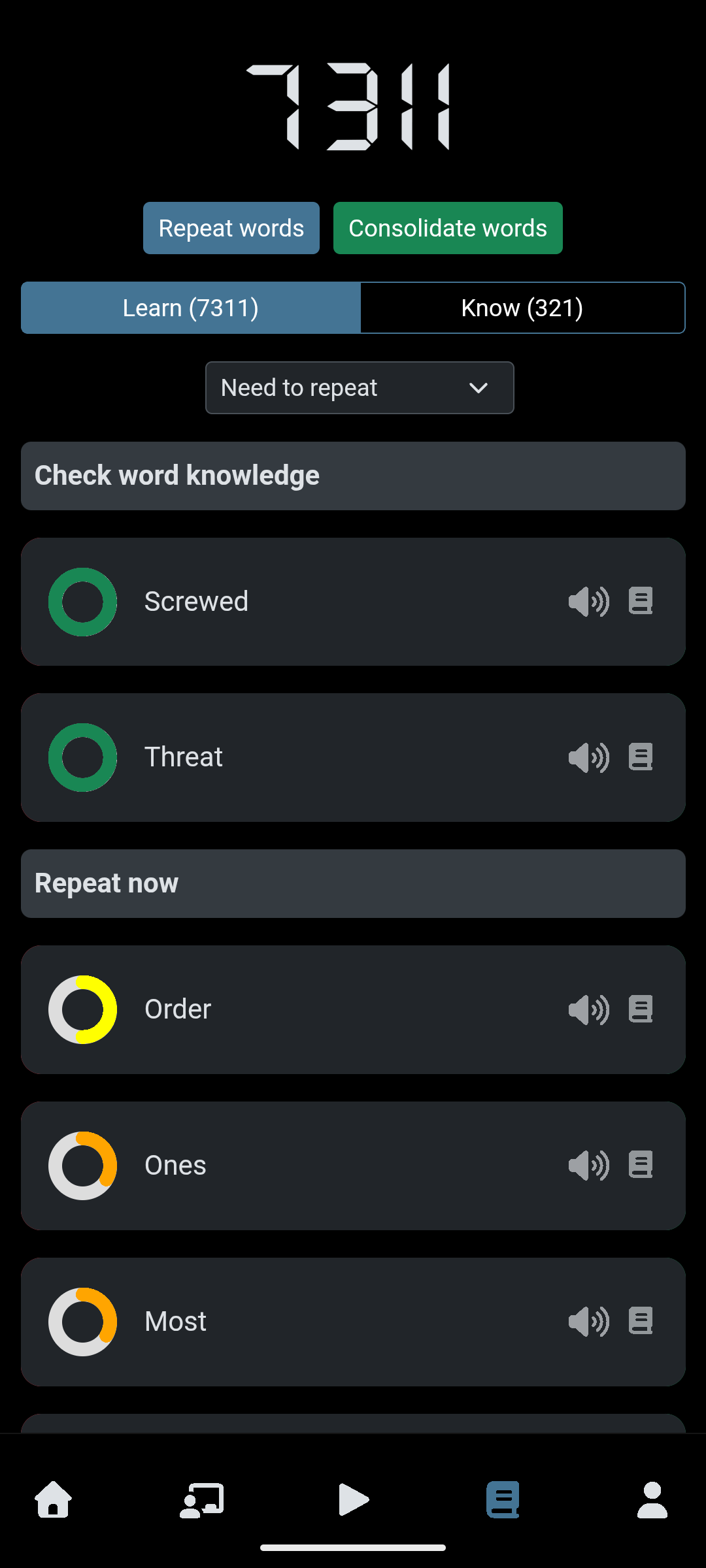
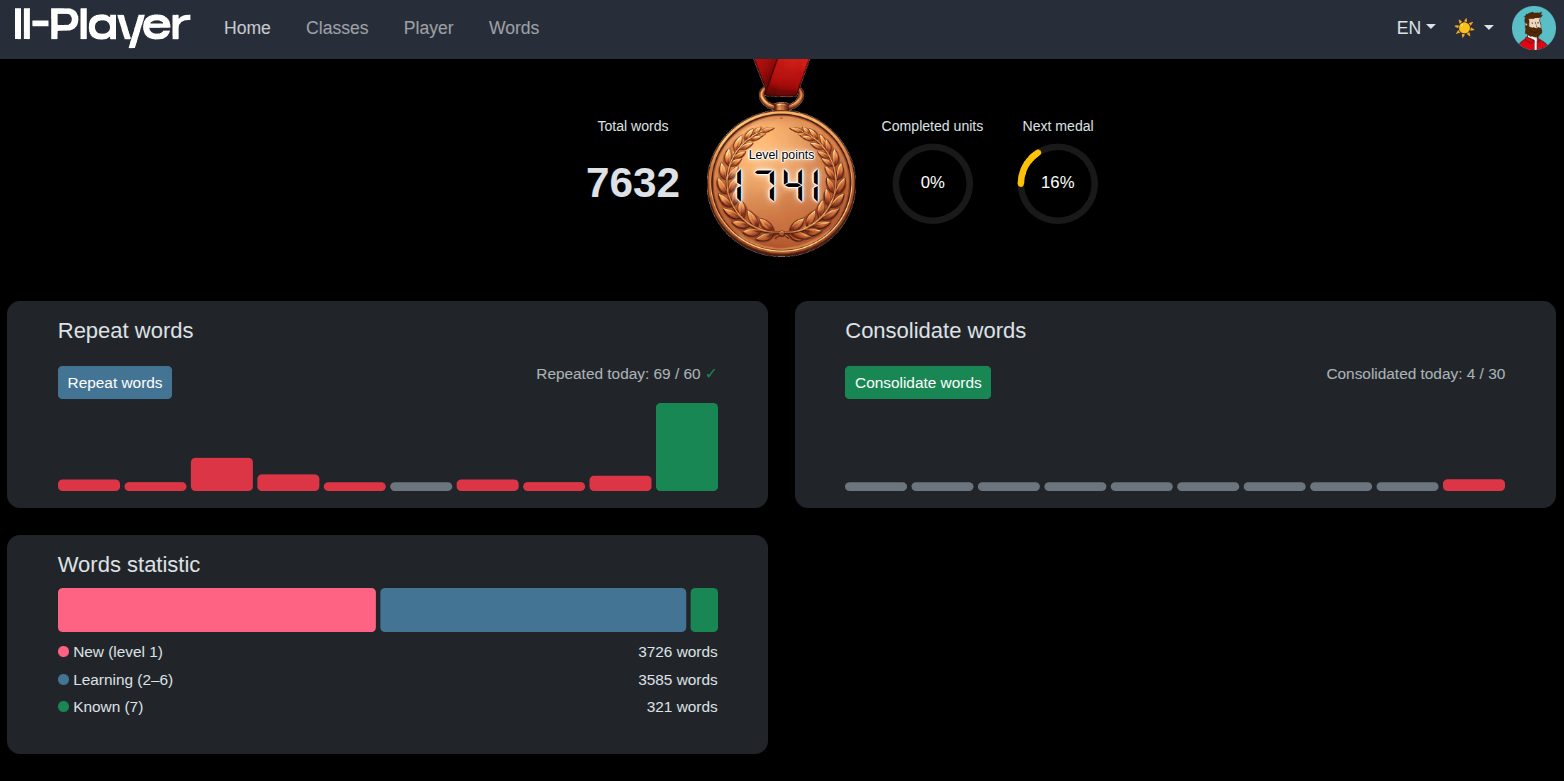
Words and progress
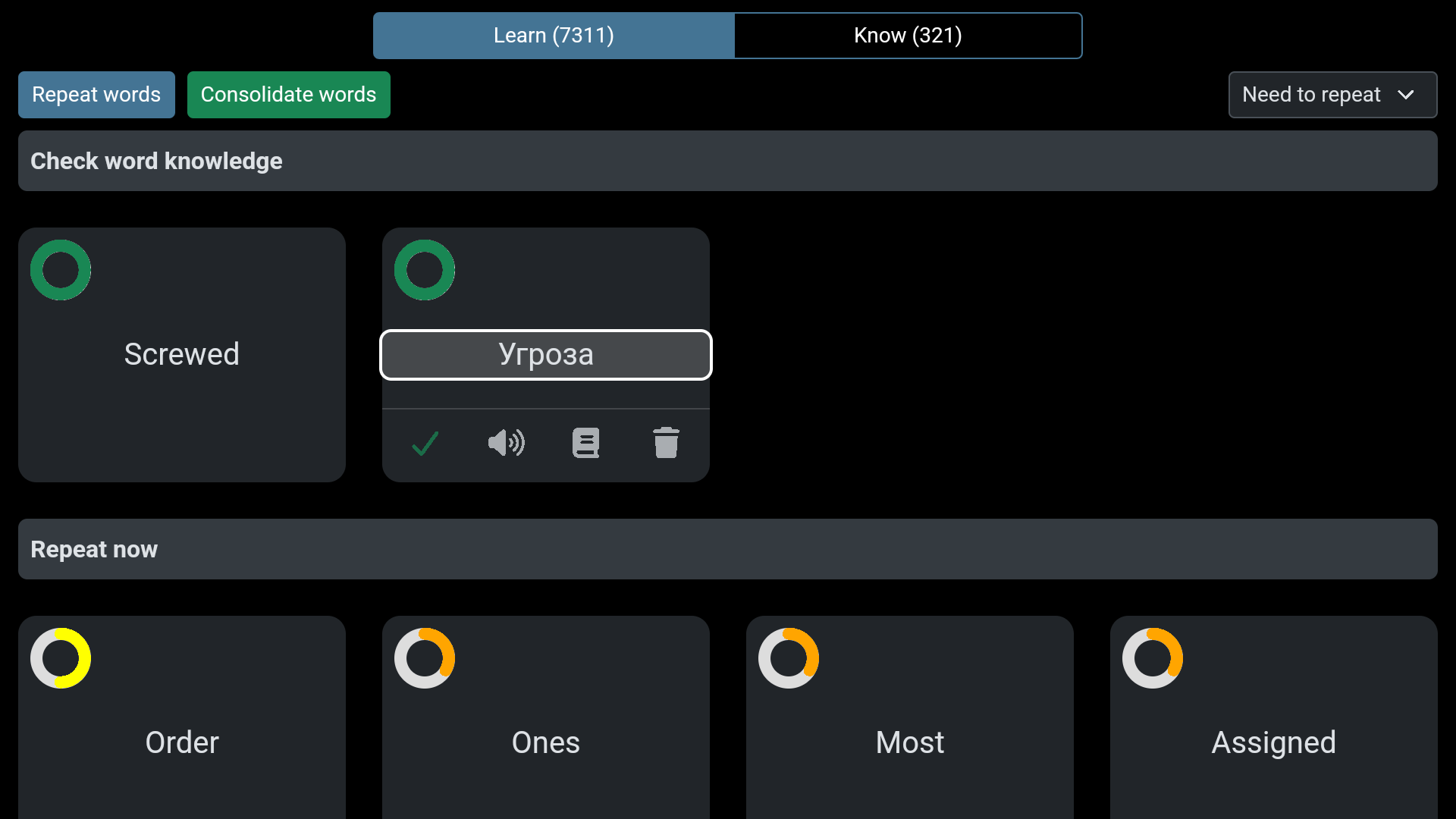
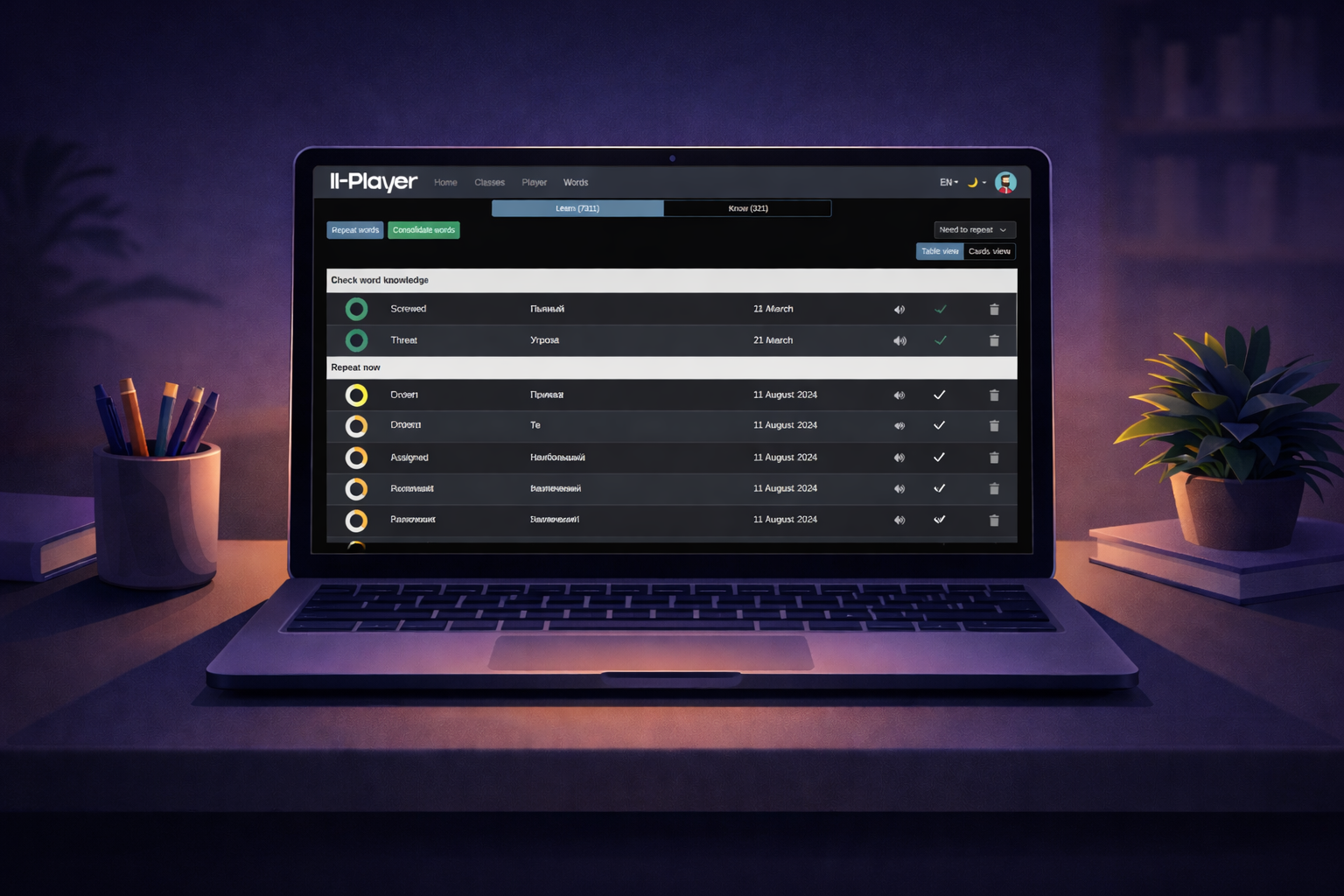
- Personal vocabulary Filters and sorting; table, cards, or list depending on screen size.
- After watching Cards for new words from subtitles or course content.
- Review and difficult words Scenarios on the home screen and in the words section.
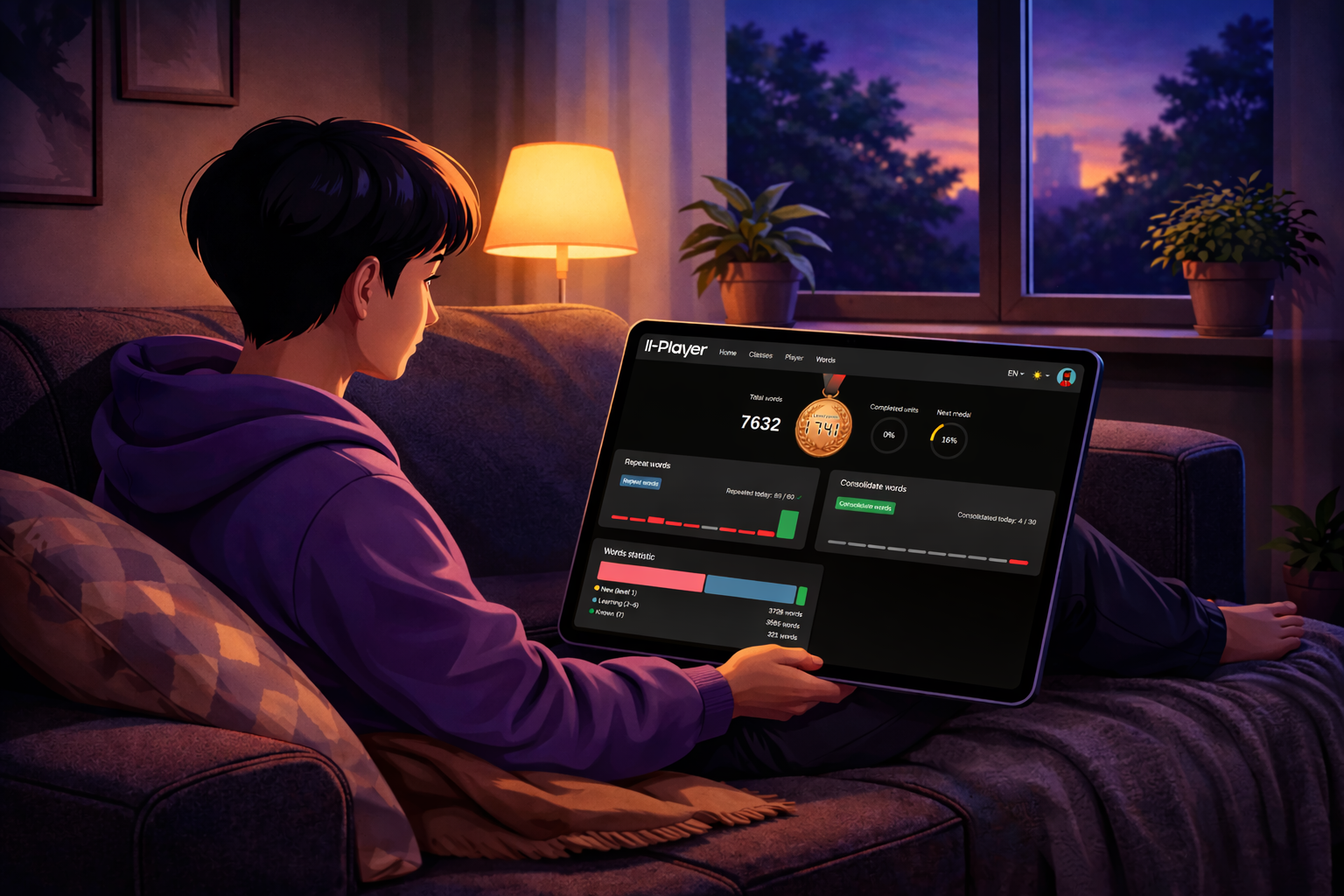
- Dashboard Summary of vocabulary mastery and learning stages.
Word review
- Select by stage and time since last training; you can review only already learned words.
- Match “word — translation” pairs, get points and a session summary; start from the words page and dashboard; in the table there are “check knowledge” and review dates.
Reinforcement
- Nearly learned words without a recent check: choose the correct option by translation.
- Points per session; if there are no suitable words, the UI shows a message.
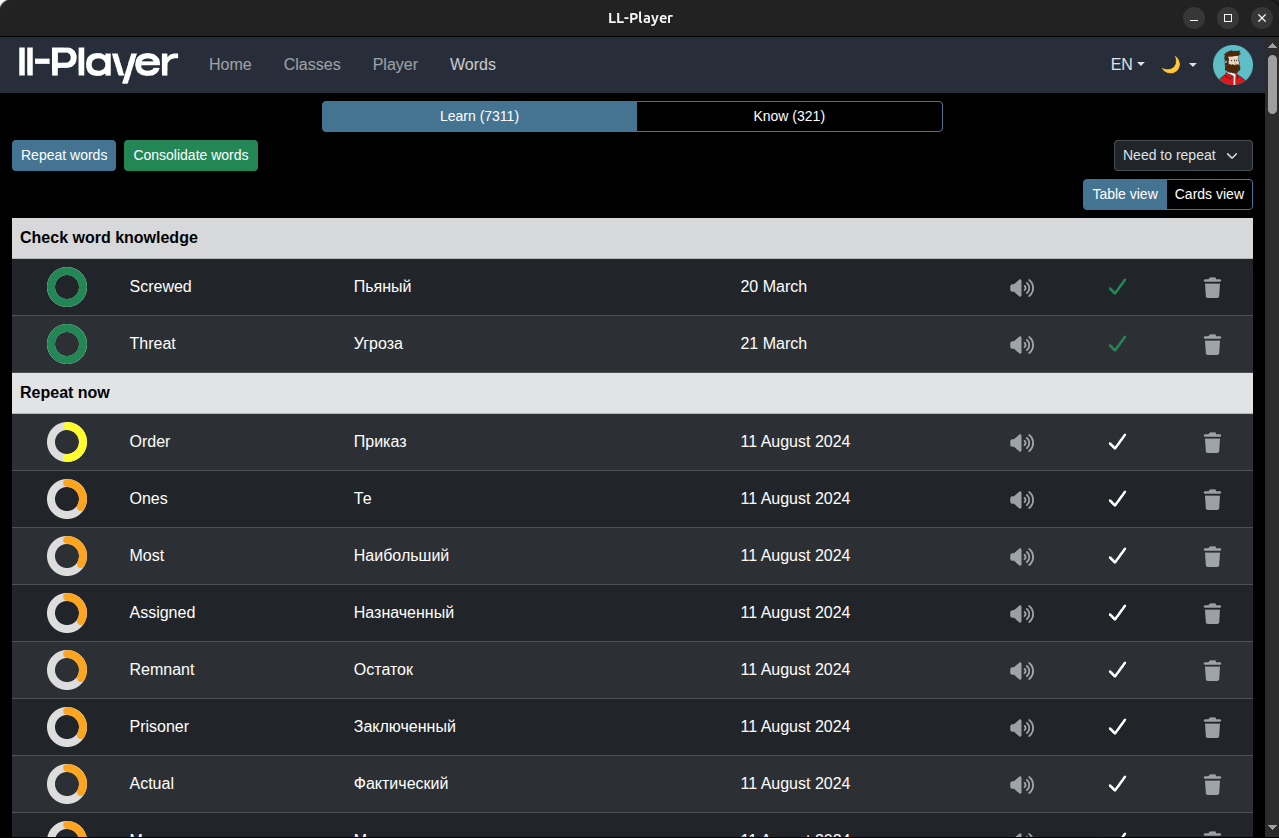
Multi-platform
Lingandia is one app on multiple platforms: UI and learning scenarios match; only the device and input method differ.
Supported devices and channels
- Browser — PC and laptop without installation.
- Desktop — Dedicated app for Windows, Linux, and macOS.
- Android — One app for phone, tablet, and Android TV; on TV you navigate using remote focus.
Who Lingandia is for
School and university
Use it to analyze lines from educational videos, prepare for classes, and collect themed vocabulary in one place.
Self-study
Watch your favorite videos with two subtitle tracks, translate as you go, and return to words via review and reinforcement.
Video courses
Track progress within a course, review vocabulary after watching, and see an overview on the dashboard.
Why use a separate learning player
Subtitles under control
Two tracks, one or both, with time offset.
Vocabulary from subtitles
Translation and dictionary info without leaving playback.
Personal word list
Filters, sorting, and views for different screens.
Review and reinforcement
Training sessions with progress stages.
One UI across devices
Browser, desktop, and Android in one flow.
How to start
Install or sign in
Download the Android or desktop app, or open the web version in a browser.
Open a video
Add a file or link in your app version and attach subtitles if needed.
First action
Start playback, choose subtitle mode, and click a word — translation and save-to-vocabulary will open.
Start with Lingandia
Choose what works for you: install the app or open the web version.